Tutorial 7 of 7
Shared gardens for allotment groups and families
Intermediate 6 min
Save a garden to a workspace so your allotment group or family can plan and log together — members edit, viewers read, changes arrive live.
A garden is often a shared job: an allotment group splits the beds, a family shares the watering, a school class keeps the harvest log. With a workspace everyone works on the same garden.
Sign in and save to a workspace
Sign in at the top of the page with a passkey or Google. Then open the Garden menu: it now has the workspace items.
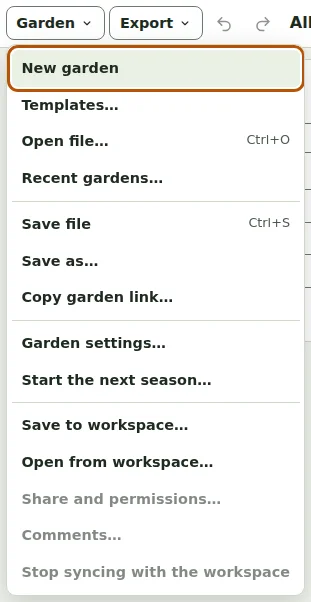
Save to workspace… asks which workspace to use (or creates a new one) and the title of the garden. From then on the chip at the top right says Saved to …, and every change syncs a moment after you make it.
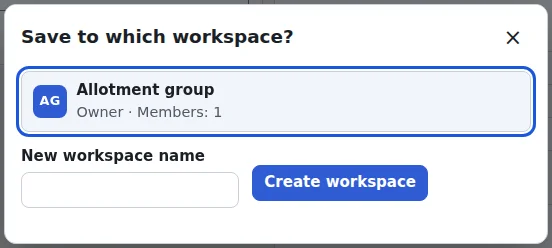
Invite the others
Share and permissions… invites people with a link. Members can change the garden; viewers can open and read it. The share dialog also gives the link that opens the garden directly.
Working together
- Changes of other members arrive on their own: the status line says Updated with the latest changes from ….
- The chip shows who else has the garden open.
- If two people change the garden at the same moment, Greenplot asks whether to load their version, keep yours or save a copy.
- Comments… adds a comment to the garden, to the bed you are working on or to the selected object on the plan.
Read only for viewers
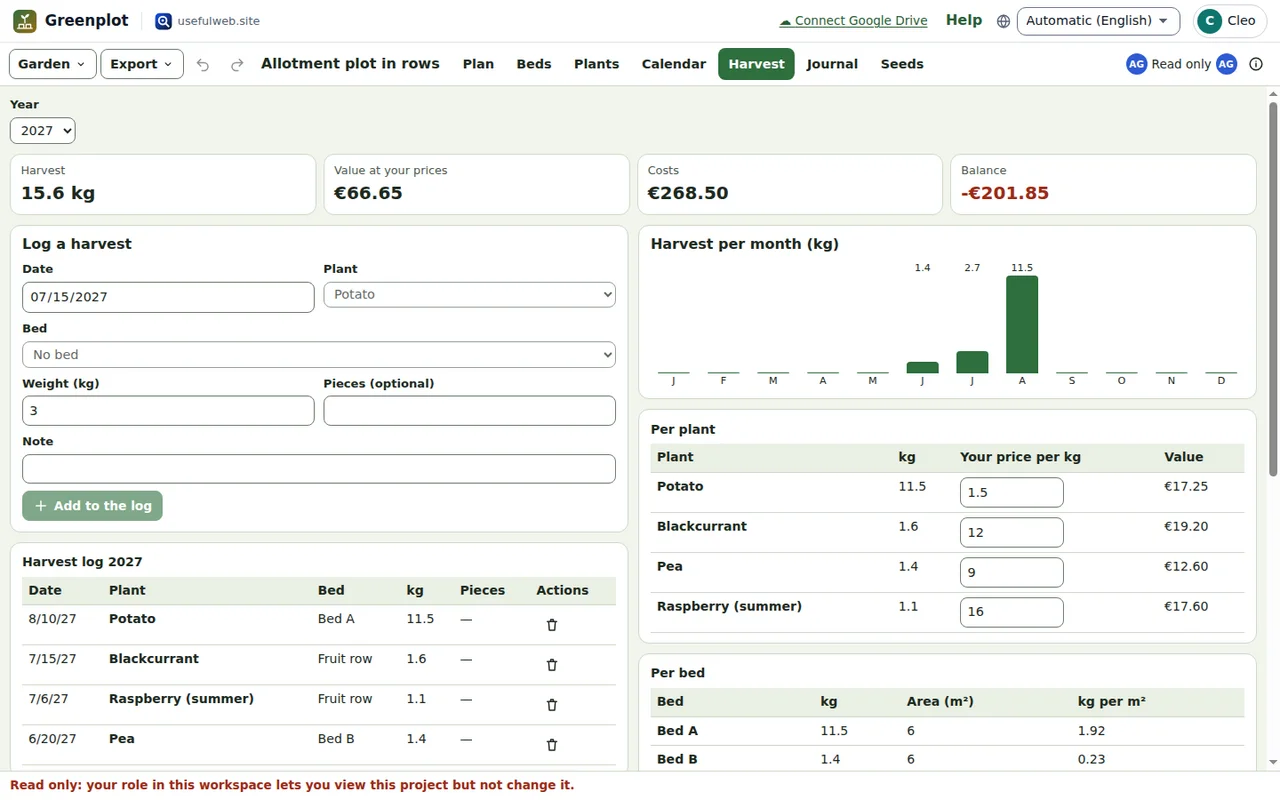
Viewers see everything — plan, beds, calendar, harvest and journal — but cannot change it. Every attempt to edit says why, and the chip shows Read only.
Photos and privacy
Journal photos become workspace attachments when the garden is shared, and count against the workspace's storage. Without a workspace, your garden and photos never leave this browser. Stop syncing with the workspace keeps your copy local again; opening another garden or a template also stops syncing, so the shared garden is never overwritten by accident.
Ready to try it?